What a good LinkedIn profile photo does
Your profile photo is often the first thing people see next to your name. It shows up in search results, in comments, in messages and next to every post you share. In most of those places it is tiny. LinkedIn displays your photo as a small circle, so a lot of detail is lost.
A good photo has one job: make you easy to recognise and easy to trust. When someone meets you on a video call or at an event, they should think "yes, that is the same person". Everything below serves that goal.
The qualities of a strong profile photo
- Your face fills most of the frame. Crop from about the top of your chest to just above your head. Your face should take up a large part of the circle. Full-body shots and wide group photos turn into a blur at small sizes.
- Soft, even light. Light should fall evenly on both sides of your face. Hard shadows under the eyes or across the nose make you look tired. Daylight from a window, or an overcast sky, is usually the easiest good light.
- A simple background. A plain wall, a soft blur of greenery or a neutral office setting all work. Avoid busy shelves, other people, signs with text and anything that pulls the eye away from you.
- Eye contact. Look straight into the lens. People respond to eyes, even in a small image.
- A natural expression. A relaxed, slight smile reads as friendly and confident. A forced grin or a very serious stare can feel distant.
- Current and recognisable. Use a photo that looks like you today. If your hair, glasses or beard have changed a lot, update the photo.
- Clothes that match your field. Wear what you would wear to an important meeting in your industry. Solid colours usually work better than strong patterns. Avoid colours that blend into the background.
- Just you. No sunglasses, no hats that shade your face, no cropped-out friends at the edge.
How to take a good selfie with your phone
You do not need a studio to get a good starting photo. A phone and a window are enough.
- Use the rear camera if you can. It is usually sharper than the front camera. Ask a friend to take the photo, or use a timer and something to lean the phone on.
- Face a window. Stand or sit so the daylight falls on your face, not behind you. Light from behind turns your face into a dark shape.
- Hold the camera at eye level or slightly above. A camera below your chin is rarely flattering.
- Step back a little and zoom in slightly. Holding the phone very close to your face can distort its proportions. A bit more distance looks more natural.
- Clean the lens. A smudged lens makes the whole photo soft and hazy.
- Turn off beauty filters. They smooth your skin and change your features. The goal is a photo that looks like you.
- Take many shots. Change your expression a little each time. Pick the one where your eyes look relaxed and alert.
- Check sharpness. Zoom in on your eyes. If they are not sharp, take the photo again.
Even if the background or light is not perfect, a sharp, front-facing photo of your head and shoulders is a strong starting point for an AI headshot.
How to make a LinkedIn photo with an AI headshot
If you do not have a good background, good light or professional clothes on hand, an AI headshot can help. It takes a photo of you and places you in a professional portrait style, while keeping your face.
Here is how it works on Morfran:
- Pick your photo. Choose a clear photo with one face, showing your head and shoulders. This gives the best result. Avoid group photos and photos where your face is small or turned far to the side.
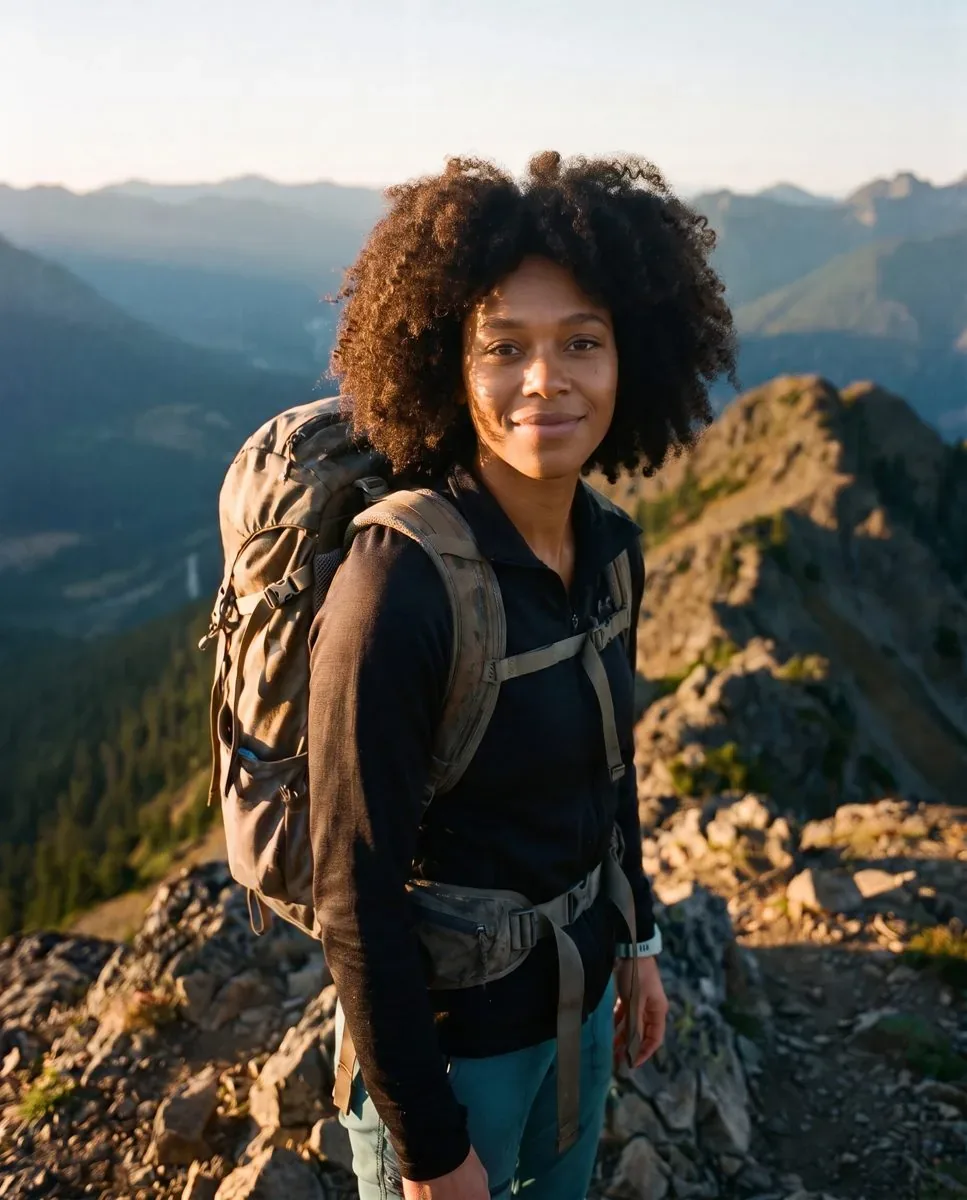
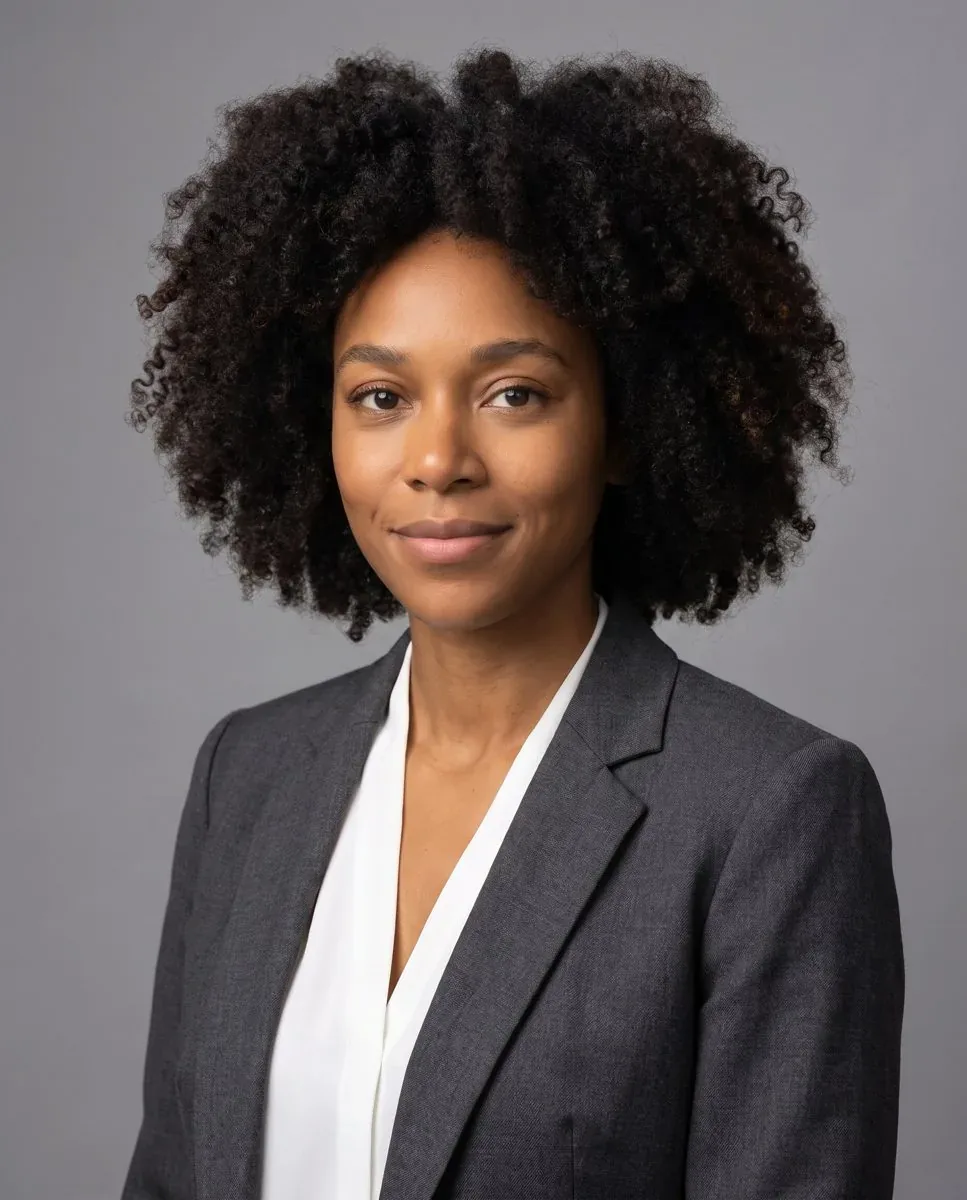
- Choose an effect. For a classic office look, use Corporate headshot. It dresses you in a blazer with soft studio light and a plain grey backdrop. For a warmer, more relaxed look, use Outdoor headshot. It places you in natural daylight with a softly blurred park behind you.
- Choose the quality. Morfran offers Standard and Pro quality. Standard is faster and costs fewer credits, and suits most portraits. Pro uses a larger image model and handles fine detail such as hair and complex light better. You can read about the difference in effect quality.
- Upload and run. Upload your photo and start the effect. Your identity is kept: the result should still look like you.
- Download your result. The result is a 2K image, which is more than enough for a profile photo and for cropping.
You can try it in your browser. New accounts get free credits, so you can test the result on your own photo before you buy anything. You can see all the headshot styles on the AI headshot page.
For developers
The same effect is available through the REST API. Send a POST request to /v1/effects/corporate-headshot with an image_url that points to the photo. The browser and the API use the same effect, so the result is the same. This is useful if you want to offer profile photos inside your own product, for example for a team directory or an event badge.
What happens to your photos
Uploaded photos and results are deleted within 1 hour. Download your result as soon as it is ready.
Uploading and cropping on LinkedIn
- Upload the full image, then crop in LinkedIn. LinkedIn lets you zoom and position the photo inside the circle. Start with a larger image, so you have room to adjust.
- Centre your face. Keep a little space above your head. Do not let the circle cut through your chin or forehead.
- Check it small. After saving, look at your photo in a comment or in search results. If you cannot see your face clearly at that size, zoom in more.
- Check it on your phone. Many people will see your profile on a phone screen. Make sure it still looks good there.
- Avoid heavy filters inside LinkedIn. A small brightness or contrast change is fine. Strong colour filters work against a professional look.
- Think about your banner too. The background banner sits behind your photo. A calm banner helps your face stand out.
Common mistakes to avoid
- An old photo. A photo from ten years ago creates a surprise when people meet you.
- A crop from a group or party photo. Cut-off shoulders, other people's hair and a drink in your hand do not send the right message.
- Too far away. If your face is small in the frame, it becomes a dot in the circle.
- Dark or harsh light. Shadows hide your eyes, and backlight turns you into a silhouette.
- A busy background. It competes with your face.
- Low resolution. A blurry, pixelated photo looks careless.
- Over-editing. Heavy skin smoothing, slimming or changing your features makes you look unlike yourself.
- No photo at all. An empty circle gives people nothing to connect with.
Stay honest: the photo should show you
A profile photo is not a fashion shoot. It is a way for people to know who they are talking to. An AI headshot can give you better light, a cleaner background and a more professional setting. That is fine. It should not turn you into someone else.
Before you use any result, ask yourself one question: would a colleague recognise me from this photo? If the answer is yes, it is a good profile photo. If the AI result looks younger, thinner or very different from you, pick another result or start from a different photo. A photo that matches the real you builds trust. A photo that does not can damage it the moment you meet.
Quick checklist
- One face, head and shoulders, filling most of the frame
- Soft, even light on your face
- Simple, calm background
- Eye contact and a natural expression
- Clothes that suit your field
- Looks like you today
- Cropped so your face is clear inside the circle
Questions
What kind of photo gives the best AI headshot?
A clear, sharp photo with one face that shows your head and shoulders. Face the camera, use soft light and avoid sunglasses or anything that covers your face. Group photos and photos where your face is small or turned away give weaker results.
Will the AI headshot still look like me?
Yes. Morfran keeps your identity, so the result should still look like you, with a new background, light and setting. If a result does not look like you, try a different starting photo. For LinkedIn, only use a result that a colleague would recognise.
Should I choose Corporate headshot or Outdoor headshot?
Corporate headshot gives a classic office look: a blazer, soft studio light and a plain grey backdrop. It suits finance, law, consulting and most corporate roles. Outdoor headshot gives a warmer, more relaxed look: natural daylight with a softly blurred park behind you. It suits creative, startup and client-facing roles. You can try both and compare.
What is the difference between Standard and Pro quality?
Both produce a 2K image. Standard is faster and costs fewer credits. Pro uses a larger image model, handles fine detail such as hair and complex light better, and costs more credits. See the effect quality help article for details.
What happens to the photos I upload?
Uploaded photos and results are deleted within 1 hour. Download your result as soon as it is ready, because it will not be available later.